How to Use Drag-and-Drop
The Treenode Framework offers a flexible and intuitive Drag-and-Drop (D-n-D) interface for rearranging nodes within the tree.
However, to use it correctly and avoid unexpected results, please follow these guidelines:
How to use
How to Drag:
- To move a node, grab it by the drag handle button (
≡or↕). - Do not try to drag the row itself — always use the handle.
- Begin dragging normally — do not press any keys yet.
How to Drop. There are two distinct drop modes:
- Insert after a node: Drag normally (no keys). The dragged node becomes a sibling after the target node.
- Insert as a child: Hold Shift while dragging. The dragged node becomes a child of the target node.
- While dragging:
- A purple cursor indicates "Insert after" mode (default).
- A green cursor appears when Shift is pressed, indicating "Insert as child" mode.
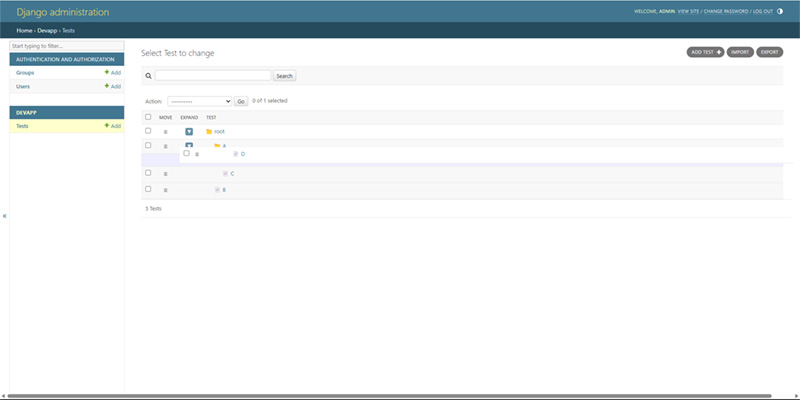
The purple cursor indicates "Insert after" mode. The node will be inserted as a sibling after the target node.
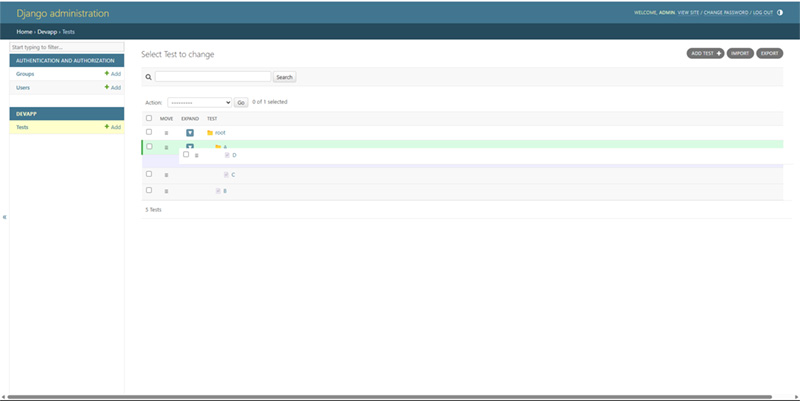
The green cursor indicates "Insert as child" mode. The node will become a child of the target node.
Tip
- First start dragging, then press Shift.
Do not press Shift before starting the drag action — otherwise the shift state might not be properly recognized. -
Inserting after a parent node does not make the node the first child.
If you drag a node and drop it after a parent node without Shift:- The node becomes a sibling to the parent's other children.
- It will be placed at the end of the sibling list, not at the top.
-
To make a node the first child of another node, you must:
- Start dragging,
- Press Shift during the drag,
- Drop onto the target parent node.
Common Mistakes to Avoid
| Mistake | What happens | Correct way |
|---|---|---|
| Pressing Shift before starting drag | Shift state not detected properly | First drag, then press Shift |
| Dropping after a parent node without Shift | Node becomes last among siblings | Use Shift to insert as a child |
| Trying to drag the entire row | Dragging won't start | Always use the drag handle |